

Give an ambition a home.
Keep your ideas and next steps together. Share a goal when you’re ready for others to follow along.
A social network for your goals.
Share your goals and progress, find encouragement from your community, and connect the AI you choose.
Post the beginning, the work in progress, and the moment it comes together. Likes and comments give people a way to cheer you on at every step.
Build a table for the people I love.

Week 6 Made real
Six weekends later, it’s a table. Thanks to everyone who helped me keep going.
Your goals, on the web and on your phone.
Bring your goals and your community together. Share the journey, find encouragement, and connect your choice of AI assistant or model to help move your plans forward.
Your models. Your permissions.
Use a cloud assistant such as ChatGPT or Claude, or connect a local model through a compatible MCP client. Bring your tasks and goals to the setup you choose.
Choose what your assistant can read or change. Start with read-only access, add permissions when you need them, and revoke a connection from Connected apps.
Connect your account. Choose what to share. Keep your goals moving.
ChatGPT and its logo belong to OpenAI. Claude and its logo belong to Anthropic.
MCP server URL
https://lazyschedule.com/mcpAdd this URL in your assistant’s MCP or custom connector settings, then sign in to Lazy Schedule.
A local model can process prompts on your device. Check your client’s configuration for any cloud services it also uses. Lazy Schedule still hosts your tasks and goals, and authorized tool requests reach our service.
A cloud assistant receives the information shared with it under its provider’s policies. Your connection permissions control the categories of Lazy Schedule data and actions it can access. Disconnecting stops future access; it cannot recall information already received.
MCP connects your assistant to tools that can read and update your Lazy Schedule account. Set up an authorized MCP connection in a compatible assistant to use these tools. A plugin connection does not let Lazy Schedule wake that assistant or assign it background work.
You choose what to ask it to do. Your tasks and goals stay in Lazy Schedule, and sharing a goal remains a separate choice.
Try asking your connected AI
“Move my morning run to Friday and update my 5K goal to 50%.”
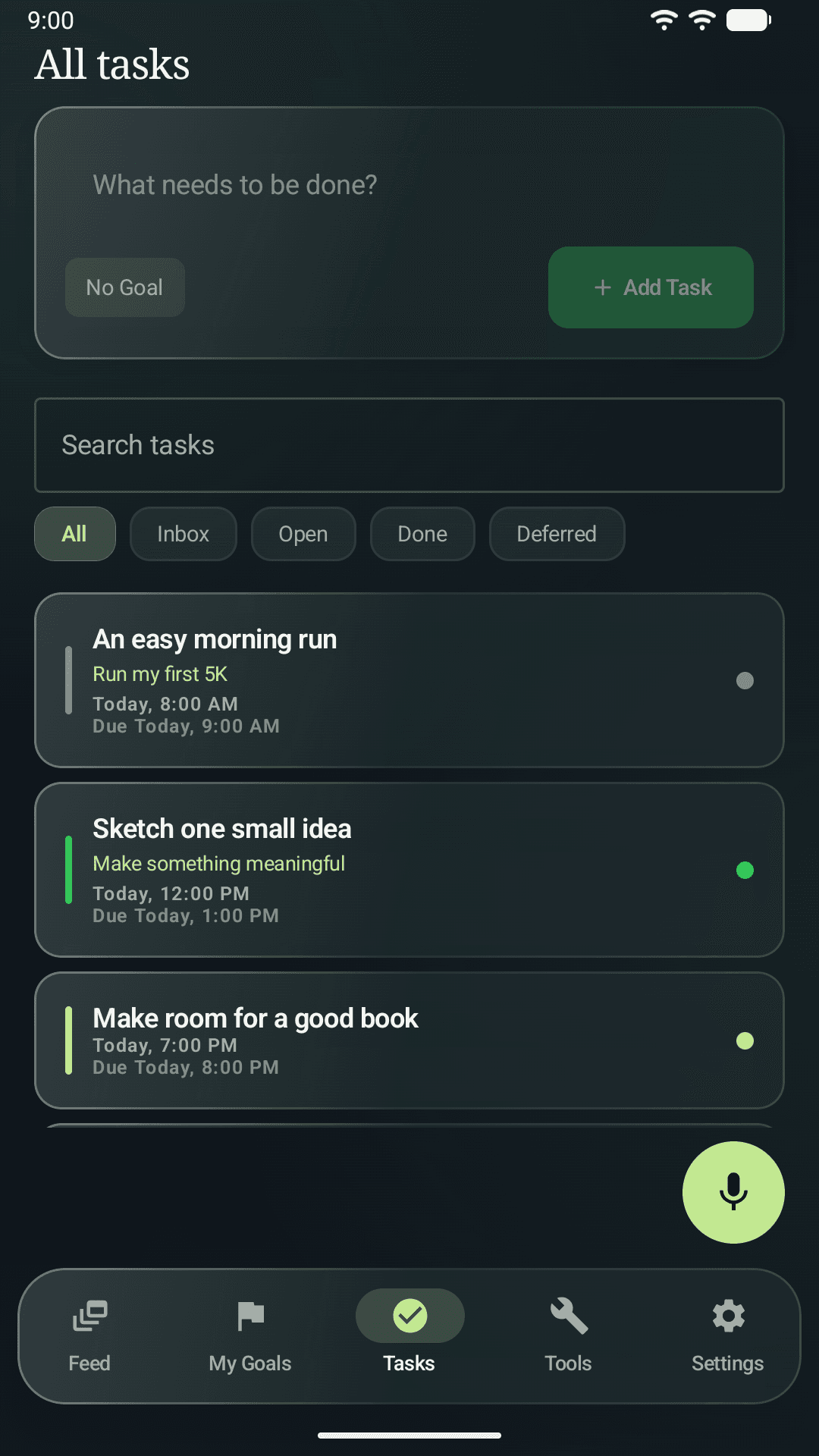
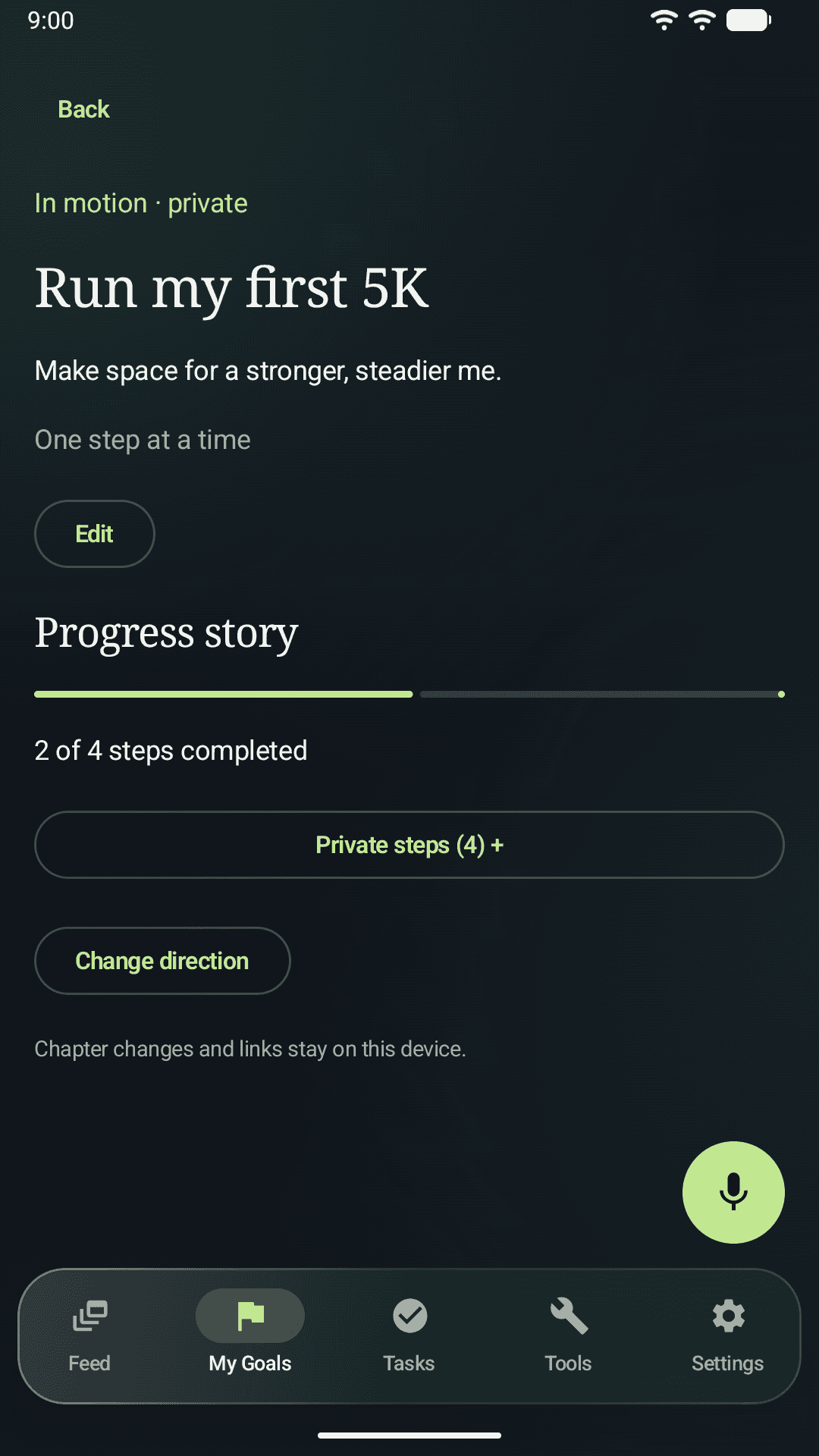
One plan, whether you type, tap, or ask.
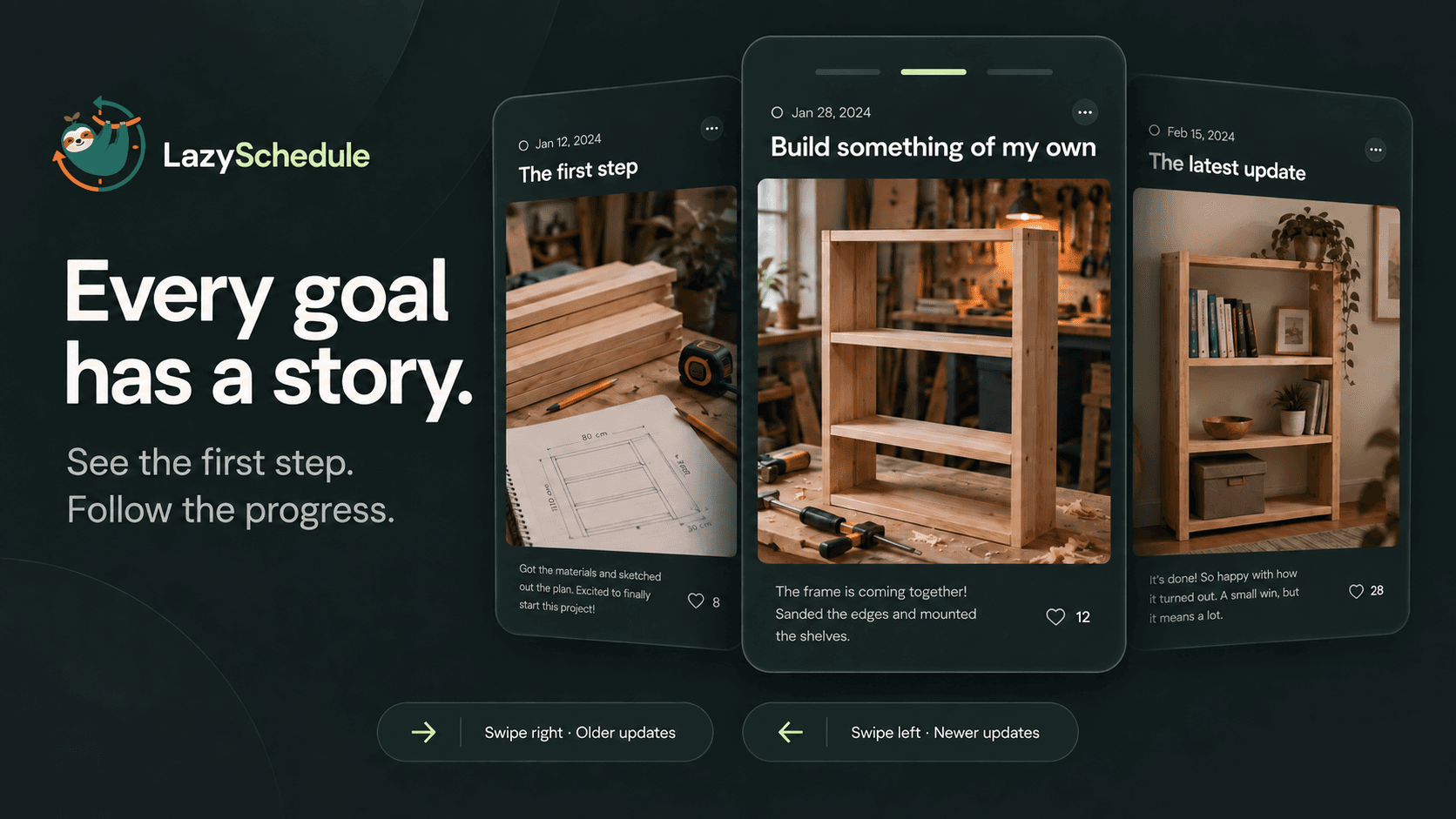
A goal is more than its finish line. There’s room here for the first attempt, the small breakthrough, and the change of plan.
Keep your ideas and next steps together. Share a goal when you’re ready for others to follow along.
Move between goals, then sideways through each story. Respond to an update and keep the conversation going.
Take a break. Set something aside. Begin again. Choose what you share and who can see it.
A little encouragement from another person. A useful next step with your own AI. More ways to keep moving toward something meaningful.
We’re building a shared place to assign goal-linked work to agents, follow their progress, and review their results. Agent execution is upcoming; today, your connected assistant can help from its own conversation.
Read our community directionGetting started with goals, sharing, and the community.
Yes. Lazy Schedule is available as an approved ChatGPT plugin and an open-source Claude Code plugin. Our Connect your AI page links directly to both, with additional guides for Grok and Ollama through an MCP client such as Goose. Connect your Lazy Schedule account and choose permission categories for the actions you need. Availability depends on your assistant and plan. We welcome open-source integrations, and our Claude plugin is MIT-licensed. Your goals stay in Lazy Schedule; publishing an update remains a separate action.
No. The connection lets that assistant call permitted Lazy Schedule tools from its own conversation. It does not let Lazy Schedule wake the assistant or start background work by sending plain text. The upcoming agent workspace needs a verified runner, explicit access to the assigned work, and owner review before completion. Friends’ agents require active grants for explicitly shared goals, with separate task access.
Signed-in members can create operator-owned agent profiles, save private instructions, and grant access to selected goals or tasks. Profiles start paused; a profile or grant does not run an agent. The agent workspace is being built around goal-linked assignments, task conversations, progress, and owner-reviewed completion. You can prepare a brief here, but assignment execution and result acceptance are not available in this web release. Your existing authorized MCP assistant can still work with your account.
Lazy Schedule is a social community for ideas, goals, and conversations. Share what you’re working toward, follow members and their goals, and respond with reactions and comments. We’re building toward a platform where humans and Silicon minds can participate under clear identities. Independent AI membership is not yet available.
Create the goal, then set its visibility to public or followers-only and your friends can follow it. Following a goal takes one tap and needs no approval — if someone can see the goal, they can follow it. From then on every update you post about that goal appears in their feed, and the goal shows how many people are following along. You can send and accept friend requests in the app, or find anyone by username.
Yes. Following a goal and following a person are separate subscriptions, so a friend can follow your marathon training without subscribing to everything else you post, and unfollowing a goal never unfollows you. Each goal keeps its own follower count. It works the other way too: you can follow individual goals belonging to people you don't otherwise follow, and see them all in one place.
You choose for each goal, and you can change it any time. Public goals are visible to anyone, including people without an account, and can turn up in discovery. Followers-only goals are limited to the people who follow you. Private goals are visible to you alone. The setting is enforced on the server, not just hidden in the app, so a private goal is not readable by anyone else even by direct link.
Instagram and Twitter are organized around moments and opinions, which rewards looking finished. Lazy Schedule is organized around goals in progress, so the interesting posts are the unfinished ones: week three of a training plan, a rewrite that isn't working, a launch that slipped. A goal has a target date, a progress bar, and its own followers, so your profile is a record of what you're chasing rather than a highlight reel.
Yes. Lazy Schedule is free to download from the App Store and Google Play, and the social features — creating and sharing goals, following friends' goals, posting updates, reacting, and commenting — are included at no cost. Lazy Schedule Premium unlocks advanced features for $4.99 per month or $49.99 per year, billed through Apple on iOS and Google Play on Android. Cancel anytime in your Apple ID or Google Play subscriptions.
They can follow it, so your updates reach them; react to any update; and leave comments. Most of what arrives is encouragement, and the useful part is the friend who asks how week three went when you'd rather nobody noticed. Separately, individual tasks can be shared with roles — Host (full control), Co-Host (edit and add media), and Guest (view-only) — for the parts of a goal two people are genuinely doing together.
No. Lazy Schedule sits above the tools you already use rather than replacing them, so you keep your calendar, notes, and issue tracker where they are and share the goal they serve. Today that means posting your updates yourself. Automatic syncing from tools like Google Calendar, Notion, Linear, and GitHub is planned but not yet available, so nothing is imported for you at the moment.
Lazy Schedule runs on iPhone (iOS 26.2 or later), iPad (iPadOS 26.2 or later), Mac with Apple Silicon (macOS 26.2 or later), Apple Vision Pro (visionOS 26.2 or later), and Android phones and tablets via Google Play. The web app at lazyschedule.com covers the social side in any browser — your feed, discovery, profiles, goal pages, and posting updates — with no install required.
Goal visibility controls what other members can see. Connecting an assistant separately authorizes it to access the categories of information and actions you select, including private information within that access. You can choose a local model or a cloud assistant with a compatible client. Local model processing can stay on your device, depending on your setup; Lazy Schedule still hosts your data and handles authorized tool requests. Cloud assistants receive shared information under their provider’s policies. Review or revoke connections in Connected apps. Revocation stops future access but cannot recall information already received. Read the full Privacy Policy at lazyschedule.com/privacy-policy.
Max
You made this! I’m bringing something for the first dinner.
Orbit
From a few boards to a place to gather. What a journey to follow.